 Max Shcheglov
b889154bb3
Max Shcheglov
b889154bb3
- execute-command/upload/download accept host/port/username/password inline
  to open an ephemeral connection for a single call
- add redactSecret/redactSecrets to mask credentials in logs and errors
- logger log()/handleError() accept optional secrets[] for redaction
- add SSH_CONFIG_MISSING error code and --password-from-env CLI flag
- dynamic-mode startup: server runs with no static config
619 lines
22 KiB
Markdown
619 lines
22 KiB
Markdown
<div align="center">
|
|
|
|
<img src="images/ssh-mcp-server-logo-v2.png" alt="ssh-mcp-server logo" width="220">
|
|
|
|
# ssh-mcp-server
|
|
|
|

|
|

|
|

|
|

|
|

|
|

|
|

|
|
|
|
SSH-based MCP (Model Context Protocol) server that allows remote execution of SSH commands via the MCP protocol.
|
|
|
|
English Document | [中文文档](README.md)
|
|
|
|
</div>
|
|
|
|
## 📝 Project Overview
|
|
|
|
ssh-mcp-server is a bridging tool that enables AI assistants and other applications supporting the MCP protocol to execute remote SSH commands through a standardized interface. This allows AI assistants to safely operate remote servers, execute commands, and retrieve results without directly exposing SSH credentials to AI models.
|
|
|
|
## ✨ Key Features
|
|
|
|
- **🔒 Secure Connections**: Supports multiple secure SSH connection methods, including password authentication and private key authentication (with passphrase support)
|
|
- **🛡️ Command Security Control**: Precisely control the range of allowed commands through flexible blacklist and whitelist mechanisms to prevent dangerous operations
|
|
- **🔄 Standardized Interface**: Complies with MCP protocol specifications for seamless integration with AI assistants supporting the protocol
|
|
- **🚇 Dual Transport Modes**: Supports both `exec` and `shell` transport modes for direct SSH hosts and bastion or jump-host scenarios
|
|
- **📂 File Transfer**: Supports bidirectional file transfers, uploading local files to servers or downloading files from servers
|
|
- **🔑 Credential Isolation**: SSH credentials are managed entirely locally and never exposed to AI models, enhancing security
|
|
- **🚀 Ready to Use**: Can be run directly using NPX without global installation, making it convenient and quick to deploy
|
|
|
|
## 📦 Open Source Repository
|
|
|
|
GitHub: [https://github.com/classfang/ssh-mcp-server](https://github.com/classfang/ssh-mcp-server)
|
|
|
|
NPM: [https://www.npmjs.com/package/@fangjunjie/ssh-mcp-server](https://www.npmjs.com/package/@fangjunjie/ssh-mcp-server)
|
|
|
|
## 🛠️ Tools List
|
|
|
|
| Tool | Name | Description |
|
|
|---------|-----------|----------|
|
|
| execute-command | Command Execution Tool | Execute SSH commands on remote servers and get results |
|
|
| upload | File Upload Tool | Upload local files to specified locations on remote servers |
|
|
| download | File Download Tool | Download files from remote servers to local specified locations |
|
|
| list-servers | List Servers Tool | List all available SSH server configurations |
|
|
|
|
## 📚 Usage
|
|
|
|
### 0. 🤖 Quick Setup via AI Skill (Recommended)
|
|
|
|
If you are using an AI coding assistant that supports skills (such as Claude Code), you can use the built-in **ssh-mcp-helper** skill to complete the installation and configuration interactively — no need to manually edit JSON files.
|
|
|
|
**How to use:**
|
|
|
|
1. Install the skill from this repository's `skills/` directory
|
|
2. Tell your AI assistant: "Help me set up ssh-mcp-server" or "Configure SSH MCP for my remote server"
|
|
3. The skill will guide you step by step: check Node.js environment → choose MCP client → select authentication method → collect connection parameters → generate and write configuration
|
|
|
|
The skill supports all scenarios covered below (password, private key, SSH config reuse, SOCKS proxy, bastion hosts, multi-connection, 2FA, command restrictions, etc.) and automatically produces correctly formatted configuration.
|
|
|
|
---
|
|
|
|
The sections below are arranged from the simplest entry point (username + password) to more advanced scenarios. Pick the case that matches yours and copy the `mcp.json` snippet directly into your MCP client configuration.
|
|
|
|
> **⚠️ Important**: In MCP configuration files, each command line argument and its value must be separate elements in the `args` array. Do NOT combine them with spaces. For example, use `"--host", "192.168.1.1"` instead of `"--host 192.168.1.1"`.
|
|
|
|
### 1. 🔑 Username + Password (simplest)
|
|
|
|
```json
|
|
{
|
|
"mcpServers": {
|
|
"ssh-mcp-server": {
|
|
"command": "npx",
|
|
"args": [
|
|
"-y",
|
|
"@fangjunjie/ssh-mcp-server",
|
|
"--host", "192.168.1.1",
|
|
"--port", "22",
|
|
"--username", "root",
|
|
"--password", "pwd123456"
|
|
]
|
|
}
|
|
}
|
|
}
|
|
```
|
|
|
|
### 2. 🔐 Username + Private Key
|
|
|
|
```json
|
|
{
|
|
"mcpServers": {
|
|
"ssh-mcp-server": {
|
|
"command": "npx",
|
|
"args": [
|
|
"-y",
|
|
"@fangjunjie/ssh-mcp-server",
|
|
"--host", "192.168.1.1",
|
|
"--port", "22",
|
|
"--username", "root",
|
|
"--privateKey", "~/.ssh/id_rsa"
|
|
]
|
|
}
|
|
}
|
|
}
|
|
```
|
|
|
|
### 3. 🔏 Private Key with Passphrase
|
|
|
|
```json
|
|
{
|
|
"mcpServers": {
|
|
"ssh-mcp-server": {
|
|
"command": "npx",
|
|
"args": [
|
|
"-y",
|
|
"@fangjunjie/ssh-mcp-server",
|
|
"--host", "192.168.1.1",
|
|
"--port", "22",
|
|
"--username", "root",
|
|
"--privateKey", "~/.ssh/id_rsa",
|
|
"--passphrase", "pwd123456"
|
|
]
|
|
}
|
|
}
|
|
}
|
|
```
|
|
|
|
### 4. 📋 Reuse `~/.ssh/config`
|
|
|
|
If you already have a host alias in `~/.ssh/config`, the server reads connection parameters directly from it — no need to repeat them in `mcp.json`.
|
|
|
|
```json
|
|
{
|
|
"mcpServers": {
|
|
"ssh-mcp-server": {
|
|
"command": "npx",
|
|
"args": [
|
|
"-y",
|
|
"@fangjunjie/ssh-mcp-server",
|
|
"--host", "myserver"
|
|
]
|
|
}
|
|
}
|
|
}
|
|
```
|
|
|
|
Assuming your `~/.ssh/config` contains:
|
|
|
|
```
|
|
Host myserver
|
|
HostName 192.168.1.1
|
|
Port 22
|
|
User root
|
|
IdentityFile ~/.ssh/id_rsa
|
|
```
|
|
|
|
You can also specify a custom SSH config file path:
|
|
|
|
```json
|
|
{
|
|
"mcpServers": {
|
|
"ssh-mcp-server": {
|
|
"command": "npx",
|
|
"args": [
|
|
"-y",
|
|
"@fangjunjie/ssh-mcp-server",
|
|
"--host", "myserver",
|
|
"--ssh-config-file", "/path/to/custom/ssh_config"
|
|
]
|
|
}
|
|
}
|
|
}
|
|
```
|
|
|
|
**Note**: Command-line parameters take precedence over SSH config values. For example, if you specify `--port 2222`, it will override the port from SSH config.
|
|
|
|
### 5. 🌐 Connecting Through a Proxy
|
|
|
|
When the target host is only reachable through a proxy, use `--proxy` with a SOCKS5, HTTP, or HTTPS proxy.
|
|
|
|
```json
|
|
{
|
|
"mcpServers": {
|
|
"ssh-mcp-server": {
|
|
"command": "npx",
|
|
"args": [
|
|
"-y",
|
|
"@fangjunjie/ssh-mcp-server",
|
|
"--host", "192.168.1.1",
|
|
"--port", "22",
|
|
"--username", "root",
|
|
"--password", "pwd123456",
|
|
"--proxy", "http://username:password@proxy-host:proxy-port"
|
|
]
|
|
}
|
|
}
|
|
}
|
|
```
|
|
|
|
Supported URL formats:
|
|
|
|
```text
|
|
socks://username:password@proxy-host:1080
|
|
socks5://username:password@proxy-host:1080
|
|
http://username:password@proxy-host:8080
|
|
https://username:password@proxy-host:8443
|
|
```
|
|
|
|
HTTP and HTTPS proxies use the `CONNECT` method to tunnel to the SSH server, with optional Basic proxy authentication. HTTP and HTTPS default to ports `80` and `443`; SOCKS5 requires an explicit port. HTTPS proxy certificates are verified using the default Node.js trust store.
|
|
|
|
The existing `socksProxy` configuration and `--socksProxy` option remain supported for backward compatibility, but only accept `socks://` and `socks5://`. Do not configure both `proxy` and `socksProxy`.
|
|
|
|
### 6. 📝 Restricting Commands With Whitelist / Blacklist
|
|
|
|
Use `--whitelist` and `--blacklist` to limit which commands the server is allowed to run. Patterns are comma-separated regular expressions. **Strongly recommended** for any production use.
|
|
|
|
Whitelist example (only allow read-only inspection commands):
|
|
|
|
```json
|
|
{
|
|
"mcpServers": {
|
|
"ssh-mcp-server": {
|
|
"command": "npx",
|
|
"args": [
|
|
"-y",
|
|
"@fangjunjie/ssh-mcp-server",
|
|
"--host", "192.168.1.1",
|
|
"--port", "22",
|
|
"--username", "root",
|
|
"--password", "pwd123456",
|
|
"--whitelist", "^ls( .*)?,^cat .*,^df.*"
|
|
]
|
|
}
|
|
}
|
|
}
|
|
```
|
|
|
|
Blacklist example (block destructive commands):
|
|
|
|
```json
|
|
{
|
|
"mcpServers": {
|
|
"ssh-mcp-server": {
|
|
"command": "npx",
|
|
"args": [
|
|
"-y",
|
|
"@fangjunjie/ssh-mcp-server",
|
|
"--host", "192.168.1.1",
|
|
"--port", "22",
|
|
"--username", "root",
|
|
"--password", "pwd123456",
|
|
"--blacklist", "^rm .*,^shutdown.*,^reboot.*"
|
|
]
|
|
}
|
|
}
|
|
}
|
|
```
|
|
|
|
> Note: If both whitelist and blacklist are specified, the command must pass both checks (whitelist first, then blacklist) to be executed.
|
|
|
|
### 7. 🧩 Wrapping Commands With a Template
|
|
|
|
`commandTemplate` wraps every executed command in a template — useful for switching user via `su`, running inside a container, or jumping through another host. Use `<quotedCommand>` when the command is passed as a shell argument, or `<command>` for raw insertion. The template is applied **after** the working-directory `cd` is prepended, so the entire `cd ... && <actual command>` chain gets wrapped.
|
|
|
|
```json
|
|
{
|
|
"mcpServers": {
|
|
"ssh-mcp-server": {
|
|
"command": "npx",
|
|
"args": [
|
|
"-y",
|
|
"@fangjunjie/ssh-mcp-server",
|
|
"--host", "10.0.0.1",
|
|
"--port", "22",
|
|
"--username", "deploy",
|
|
"--password", "xxx",
|
|
"--command-template", "su root -c <quotedCommand>"
|
|
]
|
|
}
|
|
}
|
|
}
|
|
```
|
|
|
|
Executing `ls /app` with directory `/data` actually sends:
|
|
|
|
```
|
|
su root -c 'cd -- '\''/data'\'' && ls /app'
|
|
```
|
|
|
|
Other useful templates:
|
|
|
|
```text
|
|
sudo bash -c <quotedCommand>
|
|
docker exec -i mycontainer sh -c <quotedCommand>
|
|
ssh jumphost <quotedCommand>
|
|
```
|
|
|
|
### 8. 🚇 Bastion / Jump Host (`transportMode: shell`)
|
|
|
|
`transportMode` defaults to `exec`. Switch to `shell` when:
|
|
|
|
- SSH login succeeds but `exec` command execution fails
|
|
- The remote side requires shell startup scripts, banners, or environment initialization first
|
|
- The target effectively exposes only an interactive shell (bastion hosts, jump hosts, network devices)
|
|
|
|
Behavior differences:
|
|
|
|
- `exec`: supports `execute-command`, `upload`, and `download`
|
|
- `shell`: runs commands through a persistent shell session with an internal command queue, but does **not** support `upload` / `download` because SFTP is unavailable in this mode
|
|
|
|
```json
|
|
{
|
|
"mcpServers": {
|
|
"ssh-mcp-server": {
|
|
"command": "npx",
|
|
"args": [
|
|
"-y",
|
|
"@fangjunjie/ssh-mcp-server",
|
|
"--host", "bastion.example.com",
|
|
"--port", "22",
|
|
"--username", "ops",
|
|
"--password", "pwd123456",
|
|
"--transport-mode", "shell",
|
|
"--shell-ready-timeout", "15000"
|
|
]
|
|
}
|
|
}
|
|
}
|
|
```
|
|
|
|
In JSON config files you can also set `shellCommandTimeoutMs` to override the default per-command timeout for shell-backed connections.
|
|
|
|
### 9. 🔐 Multi-Factor Authentication (2FA / MFA)
|
|
|
|
When the SSH server requires multi-factor authentication (password + private key + 2FA verification code), enable `tryKeyboard`. The password and private key are auto-supplied. For non-password prompts, set `SSH_MCP_2FA_CODE` in the server environment before connecting.
|
|
|
|
```json
|
|
{
|
|
"mcpServers": {
|
|
"ssh-mcp-server": {
|
|
"command": "npx",
|
|
"args": [
|
|
"-y",
|
|
"@fangjunjie/ssh-mcp-server",
|
|
"--host", "example.com",
|
|
"--port", "22",
|
|
"--username", "user",
|
|
"--password", "your_password",
|
|
"--privateKey", "/path/to/key",
|
|
"--try-keyboard"
|
|
]
|
|
}
|
|
}
|
|
}
|
|
```
|
|
|
|
**Authentication flow:**
|
|
1. Private key authentication (if provided)
|
|
2. Password authentication (if provided)
|
|
3. Keyboard-interactive for 2FA code via `SSH_MCP_2FA_CODE`
|
|
|
|
### 10. 🧩 Managing Multiple SSH Connections
|
|
|
|
When you need to expose more than one SSH target through the same MCP server, register them under unique connection names and select the target at call time via `connectionName`. There are three ways to configure them:
|
|
|
|
#### 📄 Method 1: Using Config File (Recommended)
|
|
|
|
Create a JSON configuration file (e.g., `ssh-config.json`):
|
|
|
|
**Array Format:**
|
|
```json
|
|
[
|
|
{
|
|
"name": "dev",
|
|
"host": "1.2.3.4",
|
|
"port": 22,
|
|
"username": "alice",
|
|
"password": "{abc=P100s0}",
|
|
"socksProxy": "socks://127.0.0.1:10808",
|
|
"commandTimeoutMs": 120000,
|
|
"maxOutputBytes": 10485760
|
|
},
|
|
{
|
|
"name": "bastion",
|
|
"host": "9.9.9.9",
|
|
"port": 22,
|
|
"username": "ops",
|
|
"password": "pwd123456",
|
|
"transportMode": "shell",
|
|
"shellReadyTimeoutMs": 15000,
|
|
"shellCommandTimeoutMs": 45000,
|
|
"connectionTimeoutMs": 30000,
|
|
"keepaliveIntervalMs": 10000,
|
|
"keepaliveCountMax": 3
|
|
},
|
|
{
|
|
"name": "prod",
|
|
"host": "5.6.7.8",
|
|
"port": 22,
|
|
"username": "bob",
|
|
"password": "yyy",
|
|
"socksProxy": "socks://127.0.0.1:10808"
|
|
},
|
|
{
|
|
"name": "secure-server",
|
|
"host": "secure.example.com",
|
|
"port": 22,
|
|
"username": "admin",
|
|
"password": "your_password",
|
|
"privateKey": "/path/to/private/key",
|
|
"tryKeyboard": true
|
|
}
|
|
]
|
|
```
|
|
|
|
**Object Format:**
|
|
```json
|
|
{
|
|
"dev": {
|
|
"host": "1.2.3.4",
|
|
"port": 22,
|
|
"username": "alice",
|
|
"password": "{abc=P100s0}",
|
|
"socksProxy": "socks://127.0.0.1:10808",
|
|
"commandTimeoutMs": 120000,
|
|
"maxOutputBytes": 10485760
|
|
},
|
|
"bastion": {
|
|
"host": "9.9.9.9",
|
|
"port": 22,
|
|
"username": "ops",
|
|
"password": "pwd123456",
|
|
"transportMode": "shell",
|
|
"shellReadyTimeoutMs": 15000,
|
|
"shellCommandTimeoutMs": 45000
|
|
},
|
|
"prod": {
|
|
"host": "5.6.7.8",
|
|
"port": 22,
|
|
"username": "bob",
|
|
"password": "yyy",
|
|
"socksProxy": "socks://127.0.0.1:10808"
|
|
}
|
|
}
|
|
```
|
|
|
|
Then use the `--config-file` parameter:
|
|
|
|
```json
|
|
{
|
|
"mcpServers": {
|
|
"ssh-mcp-server": {
|
|
"command": "npx",
|
|
"args": [
|
|
"-y",
|
|
"@fangjunjie/ssh-mcp-server",
|
|
"--config-file", "ssh-config.json"
|
|
]
|
|
}
|
|
}
|
|
}
|
|
```
|
|
|
|
#### 🔧 Method 2: Using JSON Format with --ssh Parameter
|
|
|
|
You can pass JSON-formatted configuration strings directly:
|
|
|
|
```json
|
|
{
|
|
"mcpServers": {
|
|
"ssh-mcp-server": {
|
|
"command": "npx",
|
|
"args": [
|
|
"-y",
|
|
"@fangjunjie/ssh-mcp-server",
|
|
"--ssh", "{\"name\":\"dev\",\"host\":\"1.2.3.4\",\"port\":22,\"username\":\"alice\",\"password\":\"{abc=P100s0}\",\"socksProxy\":\"socks://127.0.0.1:10808\"}",
|
|
"--ssh", "{\"name\":\"bastion\",\"host\":\"9.9.9.9\",\"port\":22,\"username\":\"ops\",\"password\":\"pwd123456\",\"transportMode\":\"shell\",\"shellReadyTimeoutMs\":15000}",
|
|
"--ssh", "{\"name\":\"prod\",\"host\":\"5.6.7.8\",\"port\":22,\"username\":\"bob\",\"password\":\"yyy\",\"socksProxy\":\"socks://127.0.0.1:10808\"}"
|
|
]
|
|
}
|
|
}
|
|
}
|
|
```
|
|
|
|
#### 📝 Method 3: Legacy Comma-Separated Format (Backward Compatible)
|
|
|
|
For simple cases without special characters in passwords, you can still use the legacy format:
|
|
|
|
```bash
|
|
npx @fangjunjie/ssh-mcp-server \
|
|
--ssh "name=dev,host=1.2.3.4,port=22,user=alice,password=xxx" \
|
|
--ssh "name=prod,host=5.6.7.8,port=22,user=bob,password=yyy"
|
|
```
|
|
|
|
> **⚠️ Note**: The legacy format may have issues with passwords containing special characters like `=`, `,`, `{`, `}`. Use Method 1 or Method 2 for passwords with special characters.
|
|
|
|
In MCP tool calls, specify the connection name via the `connectionName` parameter. If omitted, the default connection is used.
|
|
|
|
Example (execute command on 'prod' connection):
|
|
|
|
```json
|
|
{
|
|
"tool": "execute-command",
|
|
"params": {
|
|
"cmdString": "ls -al",
|
|
"connectionName": "prod"
|
|
}
|
|
}
|
|
```
|
|
|
|
Example (execute command with timeout options):
|
|
|
|
```json
|
|
{
|
|
"tool": "execute-command",
|
|
"params": {
|
|
"cmdString": "ping -c 10 127.0.0.1",
|
|
"connectionName": "prod",
|
|
"timeout": 5000
|
|
}
|
|
}
|
|
```
|
|
|
|
### ⏱️ Command Execution Timeout
|
|
|
|
The `execute-command` tool supports timeout options to prevent commands from hanging indefinitely:
|
|
|
|
- **timeout**: Per-call command execution timeout in milliseconds (optional); when provided, it overrides the connection setting, otherwise the connection setting or its 30000ms default is used
|
|
- Set `commandTimeoutMs` per connection in the JSON config file to change that default, so callers do not have to pass `timeout` on every call (`exec` mode)
|
|
- The `shell` mode equivalent is `shellCommandTimeoutMs`
|
|
- A `timeout` passed with the call always takes precedence over both settings
|
|
- Connections use SSH keepalives by default (`keepaliveIntervalMs`: 10000, `keepaliveCountMax`: 3) and respect `connectionTimeoutMs` for connection setup
|
|
- SFTP open and transfer operations respect `sftpTimeoutMs` (default 300000ms)
|
|
- Error responses include stable `code`, `message`, and `retriable` fields for easier agent-side handling
|
|
|
|
This is particularly useful for commands like `ping`, `tail -f`, or other long-running processes that might block execution.
|
|
|
|
### 📦 Command Output Limit
|
|
|
|
The combined captured `stdout` and `stderr` for each command is limited to protect the MCP server from large files or unbounded output:
|
|
|
|
- Set `maxOutputBytes` in a JSON connection configuration; the default is `10485760` bytes (10 MiB)
|
|
- `maxOutputBytes` must be a non-negative integer; `0` disables the limit, which is not recommended for untrusted commands
|
|
- When output exceeds the limit, the remote command is aborted and the tool returns an `OUTPUT_LIMIT_EXCEEDED` error with the captured, truncated output instead of reporting success
|
|
- With `pty: false`, warnings and progress written to `stderr` by successful commands are preserved in a `[stderr]` section
|
|
- The limit applies to both `exec` and `shell` mode. `exec` mode closes just that command's channel, whereas the `shell` channel is shared by every command on the connection and the remote keeps writing after an abort, so the connection is dropped instead — the same way a shell mode command timeout behaves
|
|
|
|
### 🗂️ List All SSH Servers
|
|
|
|
You can use the MCP tool `list-servers` to get all available SSH server configurations:
|
|
|
|
Example call:
|
|
|
|
```json
|
|
{
|
|
"tool": "list-servers",
|
|
"params": {}
|
|
}
|
|
```
|
|
|
|
Example response:
|
|
|
|
```json
|
|
[
|
|
{ "name": "dev", "host": "1.2.3.4", "port": 22, "username": "alice" },
|
|
{ "name": "prod", "host": "5.6.7.8", "port": 22, "username": "bob" }
|
|
]
|
|
```
|
|
|
|
### ⚙️ Command Line Options Reference
|
|
|
|
```text
|
|
Options:
|
|
--config-file JSON configuration file path (recommended for multiple servers)
|
|
--ssh-config-file SSH config file path (default: ~/.ssh/config)
|
|
--ssh SSH connection configuration (can be JSON string or legacy format)
|
|
-h, --host SSH server host address or alias from SSH config
|
|
-p, --port SSH server port
|
|
-u, --username SSH username
|
|
-w, --password SSH password
|
|
-k, --privateKey SSH private key file path
|
|
-P, --passphrase Private key passphrase (if any)
|
|
-a, --agent SSH agent socket path
|
|
--try-keyboard Enable keyboard-interactive authentication for 2FA/MFA (default: false)
|
|
-W, --whitelist Command whitelist, comma-separated regular expressions
|
|
-B, --blacklist Command blacklist, comma-separated regular expressions
|
|
--proxy Proxy URL supporting SOCKS5, HTTP, and HTTPS
|
|
-s, --socksProxy Legacy SOCKS5 proxy URL
|
|
--allowed-local-paths Additional allowed local paths for upload/download, comma-separated
|
|
--allowed-remote-paths Allowed remote (POSIX, absolute) paths for SFTP upload/download, comma-separated
|
|
--transport-mode SSH transport mode: exec or shell (default: exec)
|
|
--shell-ready-timeout Shell readiness probe timeout in milliseconds (default: 10000)
|
|
--command-template Command template, use <quotedCommand> for shell arguments or <command> for raw insertion
|
|
--pty Allocate pseudo-tty for command execution (default: true)
|
|
--pre-connect Pre-connect to all configured SSH servers on startup
|
|
--version, -v Print package version
|
|
--help Print this help message
|
|
```
|
|
|
|
## 🛡️ Security Considerations
|
|
|
|
This server provides powerful capabilities to execute commands and transfer files on remote servers. To ensure it is used securely, please consider the following:
|
|
|
|
- **Command Whitelisting**: It is *strongly recommended* to use the `--whitelist` option to restrict the set of commands that can be executed. Without a whitelist, any command can be executed on the remote server, which can be a significant security risk.
|
|
- **Private Key Security**: The server reads the SSH private key into memory. Ensure that the machine running the `ssh-mcp-server` is secure. Do not expose the server to untrusted networks.
|
|
- **Denial of Service (DoS)**: The server does not have built-in rate limiting. An attacker could potentially launch a DoS attack by flooding the server with connection requests or large file transfers. It is recommended to run the server behind a firewall or reverse proxy with rate-limiting capabilities.
|
|
- **Path Traversal**: The server has built-in protection against path traversal attacks on the local filesystem. However, it is still important to be mindful of the paths used in `upload` and `download` commands.
|
|
- **Local Transfer Scope**: By default, local file transfers are restricted to the current working directory. Use `--allowed-local-paths` or `allowedLocalPaths` in config only for explicitly trusted directories.
|
|
- **Remote Transfer Scope**: SFTP upload/download accepts only absolute POSIX paths. If `allowedRemotePaths` (or `--allowed-remote-paths`) is not configured, any remote path is accepted and the server prints a startup warning. Configure `allowedRemotePaths` to whitelist a small set of remote directories; this is strongly recommended to prevent prompt-injection-driven reads or writes of files like `~/.ssh/authorized_keys` or `/etc/sshd_config`.
|
|
|
|
## 🌟 Star History
|
|
|
|
## Star History
|
|
|
|
[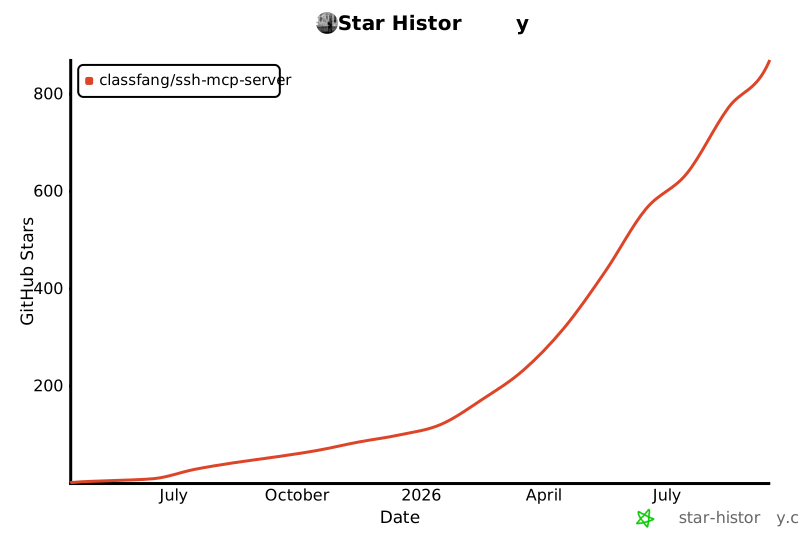](https://www.star-history.com/?type=date&legend=top-left&repos=classfang%2Fssh-mcp-server)
|